


You can download PAN card DigiLocker style—in other words, fetch the Income Tax Department’s official PAN document into DigiLocker and save a shareable PDF—without uploading a random scan or trusting a WhatsApp “agent.” This is the government path for Indians who need PAN for KYC, demat, jobs, or tax filing.
Below are six safe steps using only digilocker.gov.in (or the official DigiLocker app) and, when needed, the Income Tax e-Filing ecosystem on incometax.gov.in. DigiLocker UI labels change over time—if a button says “Search” instead of “Pull Documents,” use in-app search for “Income Tax” or “PAN.” Never install APKs from telegram forwards. For Aadhaar-side DigiLocker hygiene, see our companion guide: Download Aadhaar via WhatsApp DigiLocker — official safe steps.
Download PAN card DigiLocker — start-here checklist
- Use only digilocker.gov.in or DigiLocker apps listed on Google Play / App Store (publisher should be Government of India / NeGD—verify the listing).
- Keep your Aadhaar-linked mobile number active for OTP.
- Know your PAN and the gender recorded on PAN (the pull form often asks).
- Prefer Wi‑Fi you trust; avoid café PCs for KYC PDFs.
- Ignore WhatsApp statuses that offer “PAN PDF in 2 minutes” via third-party bots.
- After download, store the PDF privately; share via DigiLocker consent flows when possible.
DigiLocker is MeitY’s Digital India document wallet—authentic issued documents beat photo scans. Official home: DigiLocker.
Step 1 — Open the official DigiLocker website or app
On phone or computer, go to https://www.digilocker.gov.in/. On Android/iOS, install DigiLocker only from the official store listing—check the developer name and review count before tapping Install.
Red flags: digilocker lookalike domains (.xyz, misspellings), “DigiLocker Pro” APKs, or anyone asking you to enable USB debugging / AnyDesk to “fetch PAN.” Genuine DigiLocker never needs remote control of your phone.
Step 2 — Sign in (or sign up) and complete OTP verification
Sign in with your registered mobile number / DigiLocker credentials and complete OTP. New users typically verify mobile and link Aadhaar as prompted. Use the number that actually receives Aadhaar OTPs—otherwise issued-document pulls fail later.
If you forgot the username, DigiLocker provides account recovery flows tied to mobile/Aadhaar—follow on-screen help on the official site only. Do not dictate OTP aloud on a phone call with a “DigiLocker executive.”
Step 3 — Search / pull documents from Income Tax Department
Once logged in, open the area for fetching issued documents. Approximate paths (labels vary by app version):
- Website: Issued Documents → option similar to Pull / Get Documents → choose partner Income Tax Department, Government of India.
- App: Search icon → type “Income Tax” or “PAN” → select the Income Tax Department partner result.
Document type names you may see include PAN Verification Record or a PAN card / PAN document label under the Income Tax issuer. Pick the official PAN-related issued document—not an “upload scanned PAN” tile. Uploading a JPEG is not the same as an issuer-signed DigiLocker document.
If the partner list looks empty, try the search bar inside DigiLocker rather than scrolling endlessly—partner catalogues are long.
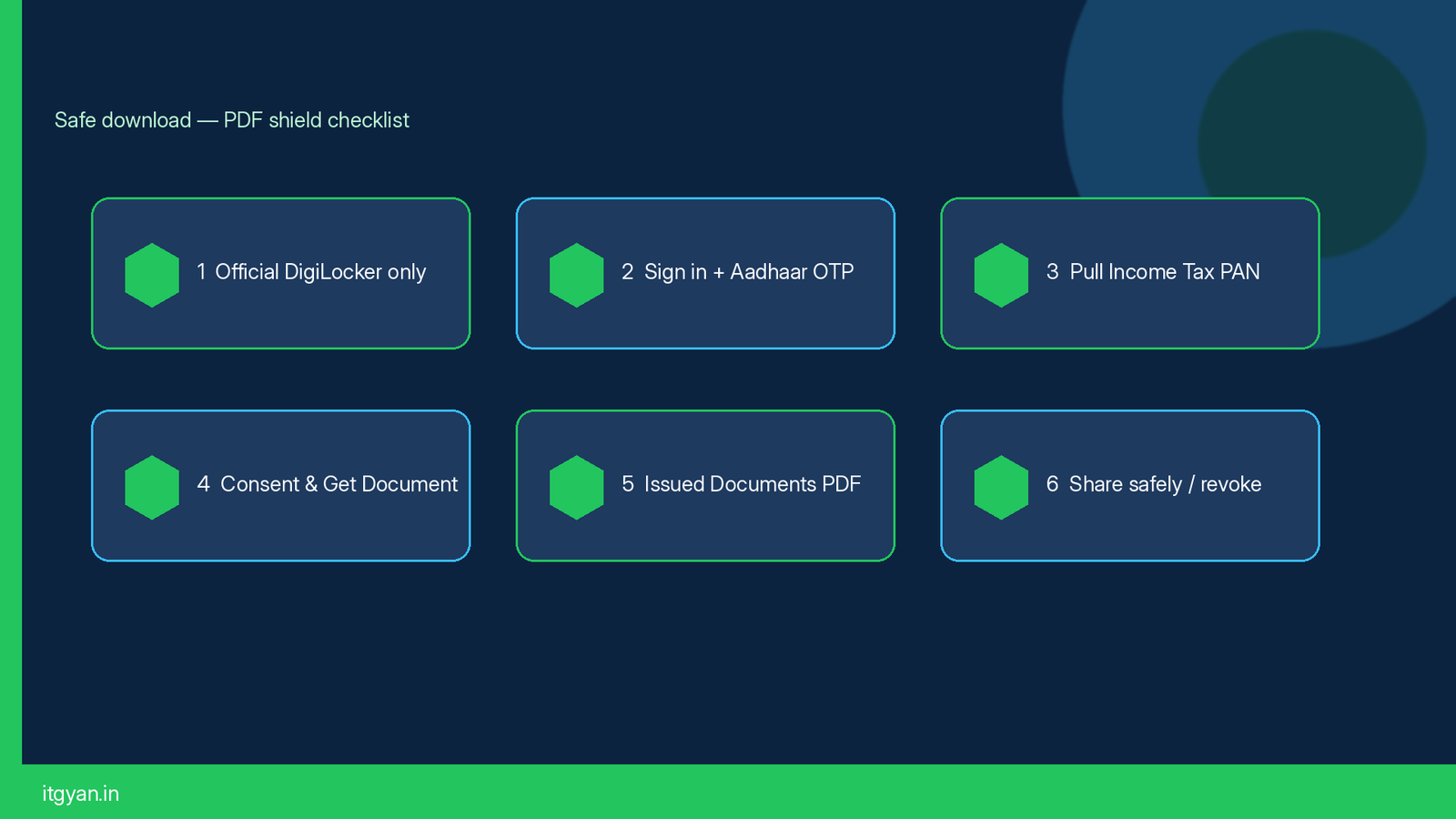
Step 4 — Enter PAN details, consent, and Get Document
Enter your PAN exactly (10 characters). Select gender as registered on PAN when asked. Tick the consent box that lets DigiLocker fetch the record from the Income Tax Department, then tap Get Document (wording may be Fetch / Request).
Complete any OTP or additional authentication DigiLocker shows. Success usually places the document under Issued Documents. If you see an error about mismatch, verify that Aadhaar–PAN linkage and demographic details are consistent on the Income Tax side before retrying.
This guide does not cover unofficial “PAN soft copy” sellers. For brand-new e-PAN issuance (people who never had a PAN), Income Tax’s Instant e-PAN service on the e-Filing ecosystem is a separate flow—see Income Tax documentation for Instant e-PAN / download e-PAN, then you can still store related artefacts carefully. Portal entry points live under incometax.gov.in and the e-Filing website linked from there.
Step 5 — Open Issued Documents and download the PDF
Go to Issued Documents, open the PAN / PAN Verification Record entry, and use Download to save a PDF to your phone or computer. Keep the file in a private folder—not your WhatsApp “Documents” chat with 40 relatives.
DigiLocker-issued documents typically carry issuer authenticity and a QR that can be checked via DigiLocker’s verification utility (verify.digilocker.gov.in). Prefer sharing through DigiLocker’s own share/consent mechanisms when a bank or employer supports it, instead of emailing unprotected PDFs to freelancers.
After download on a shared Windows PC, delete local copies you no longer need and clear the browser’s site data for digilocker.gov.in. Browser privacy habits for shared Indian PCs are covered in our Chrome settings guide when you publish companion posts—and always log out of DigiLocker on borrowed devices.
Step 6 — Share safely, revoke access, and keep PAN–Aadhaar hygiene
Use DigiLocker sharing for organisations that accept it. For everyone else, upload the PDF only over HTTPS portals you typed yourself—not links from SMS. Mask or withhold full PAN where a process allows limited disclosure.
Revoke DigiLocker app sessions and third-party consents you no longer need (check DigiLocker profile / activity / consents areas—exact menu names vary; search Settings inside the app). If your mobile number changes, update it through official DigiLocker account controls so OTPs do not land on a dead SIM.
Aadhaar pulls use a similar DigiLocker discipline—do not forward eAadhaar in family groups “for ticket booking.” Refresh the Aadhaar-side walkthrough here: Download Aadhaar via WhatsApp DigiLocker.
Scams and shortcuts to refuse immediately
- “Your PAN will deactivate tomorrow—click this DigiLocker link.”
- Paid Telegram bots selling “PAN PDF with photo.”
- Calls asking for OTP + screen share to “link Income Tax.”
- Fake Play Store clones with similar icons.
- Agents who want your Net-banking password to “download e-PAN faster.”
Government stacks sometimes throttle during peak IT return season. Wait and retry on official domains; do not switch to a “helper site” that harvests biometrics selfies.
Troubleshooting — PAN not found or OTP failure
- OTP not received: Wait 60–90 seconds, check spam/DND, confirm Aadhaar-linked number, retry off peak hours.
- Document not found: Confirm PAN is correct; check Aadhaar–PAN linking status via Income Tax prescribed tools; retry the partner pull after demographic corrections propagate.
- Old scanned upload only: Delete reliance on self-uploads; fetch the Income Tax issued document instead.
- App menu missing Pull: Use Search for “Income Tax Department” or open digilocker.gov.in in a desktop browser.
- Need brand-new PAN: Use Income Tax Instant e-PAN / PAN application channels on official portals—not DigiLocker alone.
For portal outages, check DigiLocker / Income Tax announcements on their official sites. Citizen helpdesk numbers circulate widely—verify any phone number on a government page before calling, and never share OTP on that call.
After you have the PDF — practical India tips
Name the file something boring in a locked folder. Do not set it as your WhatsApp profile curiosity document. When a fintech asks for DigiLocker fetch inside their app, confirm the OAuth consent screen shows DigiLocker / government branding and the permissions requested make sense (PAN only, not your entire locker).
Employers and banks increasingly accept DigiLocker-verified pulls. Offering an issuer document reduces arguments about “blurry PAN photo.” If details on the PDF are wrong (name spelling, photograph era), correct PAN via Income Tax / Protean (NSDL) / UTIITSL prescribed correction forms—then re-pull in DigiLocker after the issuer updates.
Keep DigiLocker and Income Tax passwords different from your email password. SIM-swap risk is real: register an email where available, watch for unexpected DigiLocker login mail, and treat your mobile number like a house key.
FAQ
Is DigiLocker PAN download free?
Yes. Fetching and downloading your issued PAN document from DigiLocker is a free citizen service. Anyone charging a “ DigiLocker PAN fee” outside official correction/print channels is not the DigiLocker pull itself.
Is a DigiLocker PAN PDF legally valid?
Issuer-signed DigiLocker documents from the Income Tax Department are meant for authentic digital use. Organisations may still ask for specific formats—follow the requester’s KYC policy, and prefer DigiLocker verification/QR where supported (verify.digilocker.gov.in).
Can I download PAN from DigiLocker without Aadhaar?
DigiLocker accounts and many issued-document pulls rely on mobile/Aadhaar verification patterns. If Aadhaar is not linked or mobile is outdated, fix those through official UIDAI / DigiLocker processes first. Do not “borrow” someone else’s locker.
What if my PAN does not appear after Get Document?
Recheck PAN spelling, gender, and Aadhaar–PAN link. Try again later from the official app/website. Use Income Tax e-Filing help for e-PAN download scenarios that are separate from DigiLocker partner pull.
Should I trust WhatsApp forwards claiming DigiLocker PAN shortcuts?
No. Stick to digilocker.gov.in and incometax.gov.in. For Aadhaar via official WhatsApp/DigiLocker patterns, use only numbers and steps documented in government sources—and our internal safety write-up: Aadhaar DigiLocker guide.