


Chrome privacy settings on a shared Windows PC in India decide who inherits your WhatsApp Web session, UPI site cookies, and leftover Aadhaar KYC tabs after you walk away. Ten minutes of toggles is cheaper than a SIM-swap panic later.
This guide walks through nine practical Chrome privacy settings for desktop Chrome on Windows—the browser most Indian households still open first—with short Android notes where the same idea applies. You will tighten cookies, sync, Safe Browsing, ad topics, site permissions, and a few habits that matter when family members, cybercafés, or office hot-desks share one profile. Pair this with our WhatsApp privacy settings checklist and the Windows 11 Copilot privacy checklist for a fuller desktop hygiene pass.
Chrome privacy settings Indians should change today — checklist
- Block third-party cookies (allow exceptions only for sites that break).
- Audit Chrome Sync — turn off History/Open tabs on shared PCs, or use a sync passphrase.
- Keep Safe Browsing on (Enhanced if you download random installers often).
- Disable Ad topics and Site-suggested ads under Ad privacy.
- Reset camera, mic, location, and notification permissions for unknown sites.
- Clear site data after bank / DigiLocker / Income Tax sessions on shared machines.
- Review autofill and saved passwords before lending the PC.
- Remove unused extensions; prefer official Chrome Web Store only.
- On Android Chrome, mirror cookies + Safe Browsing + site permissions.
Official paths below follow Google Chrome Help. Labels move occasionally—if a menu name differs, open chrome://settings and search the keyword (cookies, Safe Browsing, Ad privacy, Sync).
1. Third-party cookies — stop silent trackers between UPI and news tabs
Where to click on Windows Chrome
Open Chrome → More (⋮) → Settings → Privacy and security → Third-party cookies. Choose Block third-party cookies. Incognito already blocks many of them by default; regular windows do not.
When a payment gateway or older IRCTC-style flow misbehaves, add only that site to the exceptions list instead of flipping everything back to Allow. Google’s cookie help explains allow/block and per-site exceptions: Delete, allow, and manage cookies in Chrome.
India angle: after a DigiLocker or net-banking session on a family laptop, also open Privacy and security → Delete browsing data (or “See all site data and permissions”) and remove data for that specific site so the next person does not reopen your logged-in tab.
2. Chrome Sync — decide what leaves the house PC
Shared family profiles vs personal Google Account
Settings → You and Google → Sync and Google services → Manage what you sync. On a PC that cousins and parents also use, prefer Customize sync and turn off History, Open tabs, and Payment methods if those people are not your Google Account owners. Bookmarks can stay if you want; passwords should not sync into a shared Windows login.
For a personal laptop, a sync passphrase encrypts synced data so Google cannot read it (Wallet payments/addresses are excluded). Path: Sync and Google services → Encryption options → Encrypt synced data with your own sync passphrase. Store the passphrase offline—losing it means you cannot decrypt that cloud copy. Details: Chrome Sync help.
WhatsApp Web is not “sync,” but treat Linked devices the same way you treat Chrome Sync—audit both after café or repair-shop visits. See our WhatsApp privacy settings guide for the Linked devices checklist.
3. Safe Browsing — phishing protection for fake KYC sites
Settings → Privacy and security → Security → Safe Browsing. Keep at least Standard protection. Choose Enhanced protection if you routinely open “update UPI / DigiLocker / Income Tax” links from WhatsApp forwards—Enhanced sends more real-time signals to Google for stronger warnings.
Do not turn Safe Browsing Off to “fix a slow download.” That is how fake Chrome updates and lookalike digilocker domains win. Official overview: Manage Chrome safety and security.
Run Safety Check from the same Privacy and security page monthly—it flags weak passwords, extensions, and stale notification grants.
4. Ad privacy — Ad topics and site-suggested ads
Settings → Privacy and security → Ad privacy. Turn off or tightly manage:
- Ad topics — Chrome notes recent browsing themes and can share a small set with sites.
- Site-suggested ads — sites store suggestions with Chrome for later personalisation.
- Ad measurement — review whether you want limited cross-site measurement.
You will still see ads; they may be less tailored. That is fine for most readers. Google’s guide: Manage your ad privacy in Chrome. Privacy Sandbox concepts evolve—when Chrome renames a toggle, search “Ad privacy” inside Settings rather than trusting a viral screenshot from 2023.
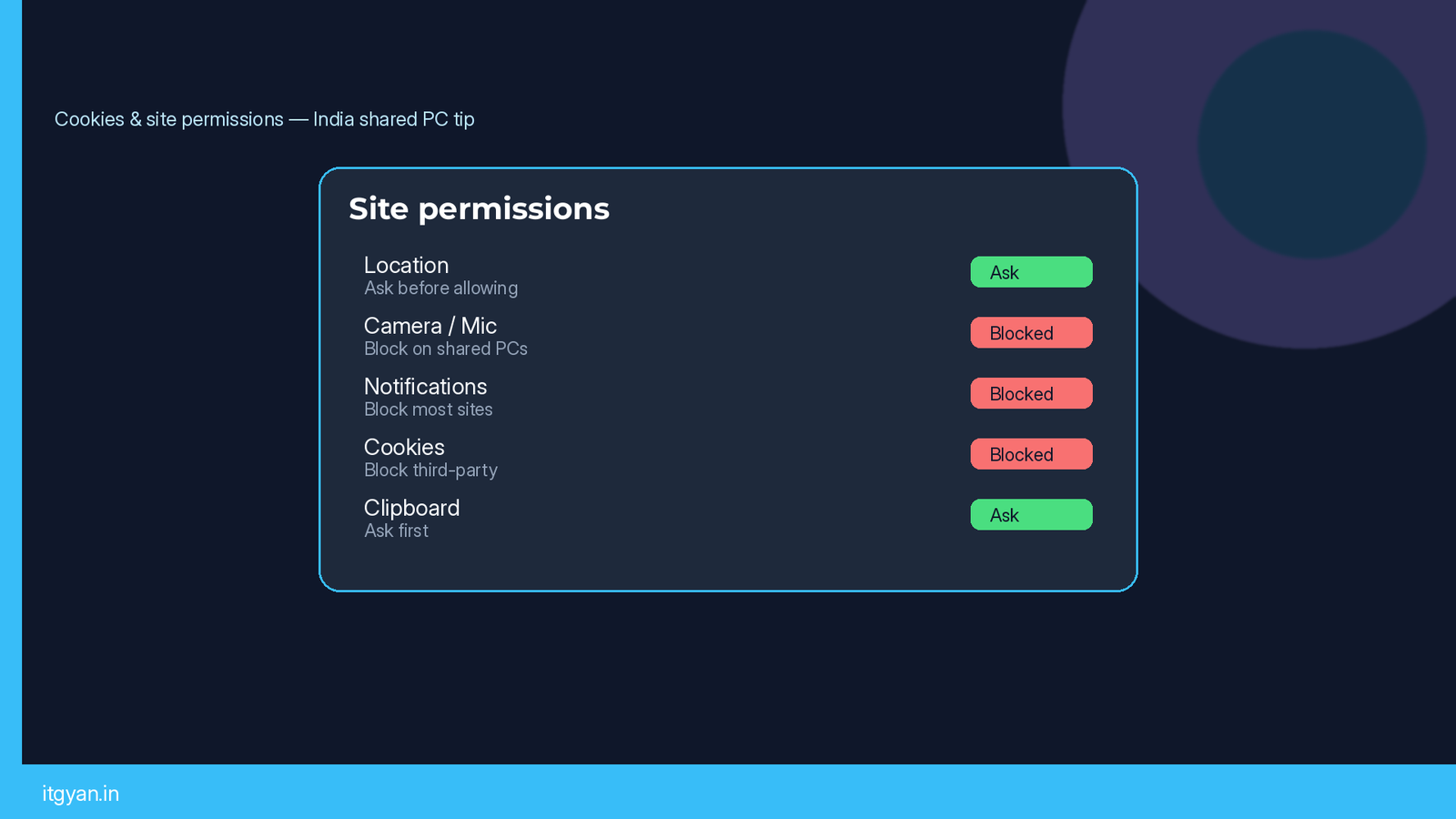
5. Site permissions — camera, mic, location, notifications
Defaults that belong on Indian shared PCs
Settings → Privacy and security → Site settings. Set defaults:
- Location → Ask before allowing (never Allow).
- Camera / Microphone → Ask (Block on a cybercafé machine).
- Notifications → quieter browsing: Block or Ask; revoke spammy news and “congratulation” sites.
- Clipboard / Automatic downloads → Ask or Block.
Per-site resets: click the padlock (or tune icon) left of the address bar → Site settings → reset permissions after a video KYC. Official permissions help: Change site settings permissions.
Never grant camera/mic to a random “bank support” page that arrived via SMS. Real banks push you into their own apps or known HTTPS domains—not a shortened goo.gl-style mystery link.
6. Clear browsing data after KYC, not once a year
Settings → Privacy and security → Delete browsing data. For a quick shared-PC exit: Time range Last hour → Cookies and other site data + Cached images. For a deeper clean before selling a PC: All time, and also clear passwords only if you understand you will re-login everywhere.
Better habit: clear site-specific data for incometax.gov.in, digilocker.gov.in, and your bank domain after filing or e-KYC, instead of nuking every login every day. Combine with Windows privacy controls from our Copilot privacy checklist so OS recall/features are not quietly keeping context either.
7. Passwords and autofill on family Windows logins
Settings → Autofill and passwords (wording varies: Passwords / Payment methods / Addresses). On a shared Windows account:
- Do not save net-banking or UPI web passwords in Chrome.
- Turn off offer-to-save passwords for that profile, or use a separate Windows user + Chrome profile for each adult.
- Review Passwords → Check passwords for breaches; change anything reused across Gmail and banking.
Chrome profiles (person icon → Add) are underrated in Indian homes: one profile for “office Gmail,” one for “parents’ browsing,” keeps cookies and autofill from mixing. Sync each profile only to the matching Google Account.
8. Extensions — the forgotten spyware vector
Open chrome://extensions. Remove anything you do not recognise, especially “free VPN,” “WhatsApp web plus,” coupon grabbers, and PDF tools that asked for <all_urls> access. Prefer extensions from the official Chrome Web Store and keep the list short.
Student PCs often accumulate “AI writer” and “cheat sheet” extensions that can read every form—including Income Tax uploads. If an extension needs to “read and change all data on websites you visit,” treat that as root access to your browser.
9. Android Chrome notes (brief)
On Android: Chrome → three-dot menu → Settings → Privacy and security. Mirror the desktop work: Safe Browsing on, third-party cookies restricted where offered, Site settings for location/camera/mic, and Ad privacy toggles when present on your version. Use a screen lock; browser settings cannot save a stolen unlocked phone.
For WhatsApp Web QR scans from a phone, remember the desktop session stays alive until you log out—privacy is a device pair, not a single toggle. Revisit Linked devices as described in the WhatsApp privacy settings article.
Monthly 10-minute Chrome privacy audit
- Safety Check.
- Site settings → Notifications list prune.
- Extensions list.
- Sync categories still make sense?
- Delete site data for banks / DigiLocker after heavy KYC weeks.
None of these settings replace judgement about OTP forwards or remote-access “support” calls. They do reduce how much a casual next user of the same Chrome profile inherits.
FAQ
Do I need to block all cookies for privacy?
No. Blocking third-party cookies is the practical default. Blocking all cookies breaks logins. Prefer site-specific clears after sensitive sessions.
Is Enhanced Safe Browsing worth it in India?
Yes if you click a lot of WhatsApp forwards and APK-adjacent pages. It shares more URL/context with Google for stronger protection—read Google’s Safe Browsing privacy notes and choose consciously.
Will turning off Ad topics stop all ads?
No. Ads continue; personalisation decreases. That is expected.
Should every family member share one Chrome profile?
Avoid it. Separate Windows users or Chrome profiles keep cookies, passwords, and WhatsApp Web sessions from crossing.
Where do official Chrome privacy docs live?
Start from Chrome Settings search, then Google Chrome Help articles for cookies, site permissions, ad privacy, and safety.