
If your computer feels slower than usual or your storage is constantly running out, you’re not alone—and more importantly, your PC isn’t “getting old.”
It’s just getting cluttered.
Every time you use your computer—whether you’re browsing, downloading files, installing apps, or even updating your system—Windows quietly creates temporary files. These files are meant to help processes run smoothly in the short term, but over time, they become digital junk.
And here’s the surprising part:
Most of this junk is never cleaned automatically.
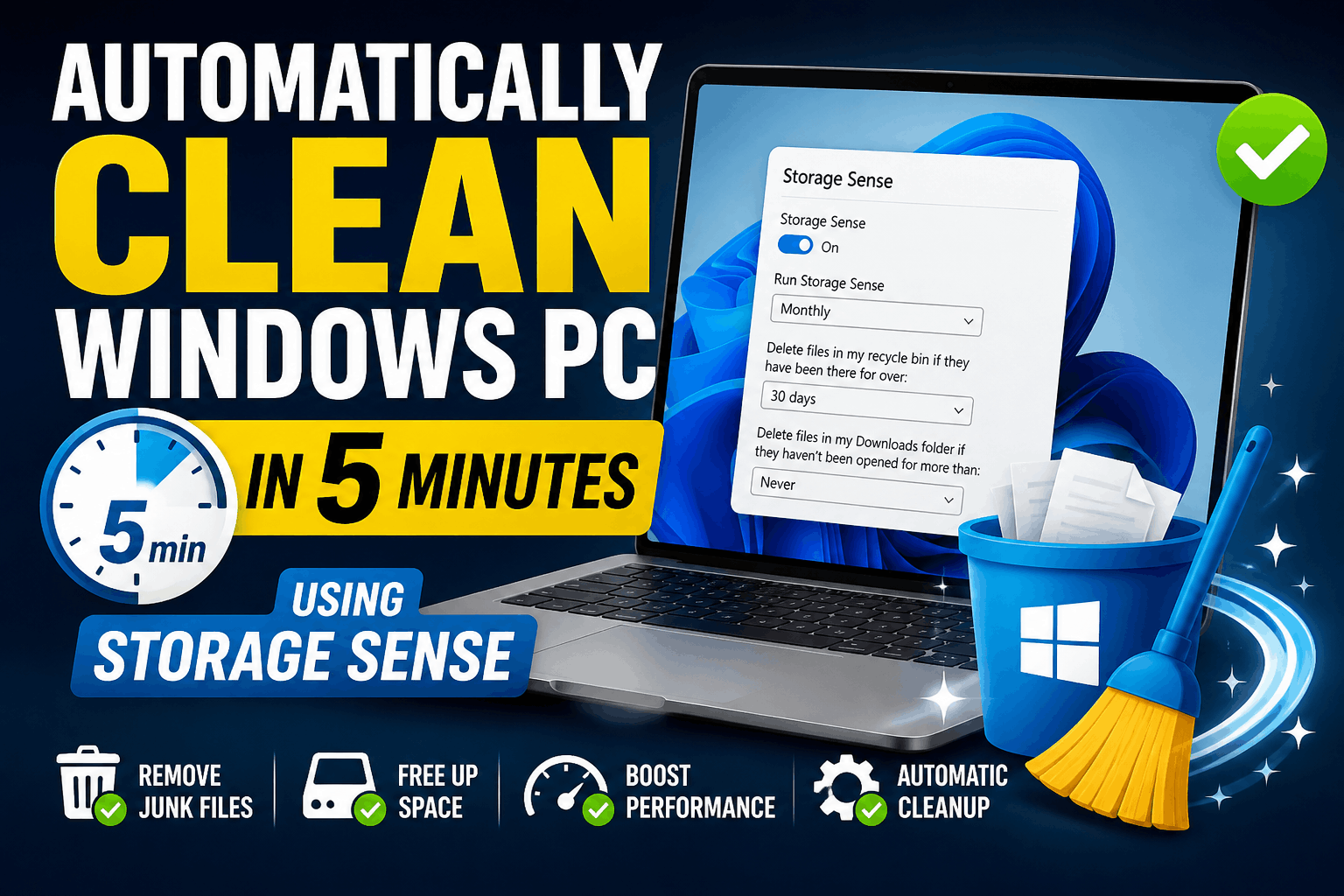
That’s why learning how to automatically clean Windows PC is one of the smartest things you can do—not just to free up space, but to keep your system running fast and smooth for years.
In this guide, I’ll walk you through exactly how to do it using a built-in Windows feature that most people ignore.
Table of Contents
🧠 What Does It Mean to Automatically Clean Windows PC?
When we talk about “automatically clean Windows PC,” we’re referring to setting up your system so it removes unnecessary files on its own—without you having to manually delete anything.
Think of it like setting up a self-cleaning system for your computer.
Instead of:
- Opening Disk Cleanup again and again
- Manually deleting temp files
- Clearing recycle bin every few weeks
You let Windows handle everything in the background.
And the tool that makes this possible is called Storage Sense, available in both Windows 10 and Windows 11.
💻 Why You Should Automatically Clean Windows PC (Real Problem Explained)
Let’s make this relatable.
Imagine your room. You don’t clean it for a few days—it still looks fine. But after a few weeks? Clothes pile up, dust collects, and suddenly it feels messy and uncomfortable.
Your PC works exactly the same way.
At first, everything runs smoothly. But slowly:
- Temporary files build up
- Cache data accumulates
- Deleted files sit in recycle bin
- Downloads folder becomes overloaded
And since Windows doesn’t clean this automatically by default, all of this keeps growing silently.
Eventually, you start noticing:
- Slower performance
- Low disk space warnings
- Lag while opening apps
- Longer boot times
This is not a hardware problem—it’s a maintenance problem.
And the solution is simple: configure your system to automatically clean Windows PC regularly.
⚙️ How to Automatically Clean Windows PC Using Storage Sense
Let’s get practical.
Follow these steps carefully:
- Click on the Start Menu
- Open Settings
- Go to System
- Click on Storage
- Scroll down to Storage Sense
- Turn it ON
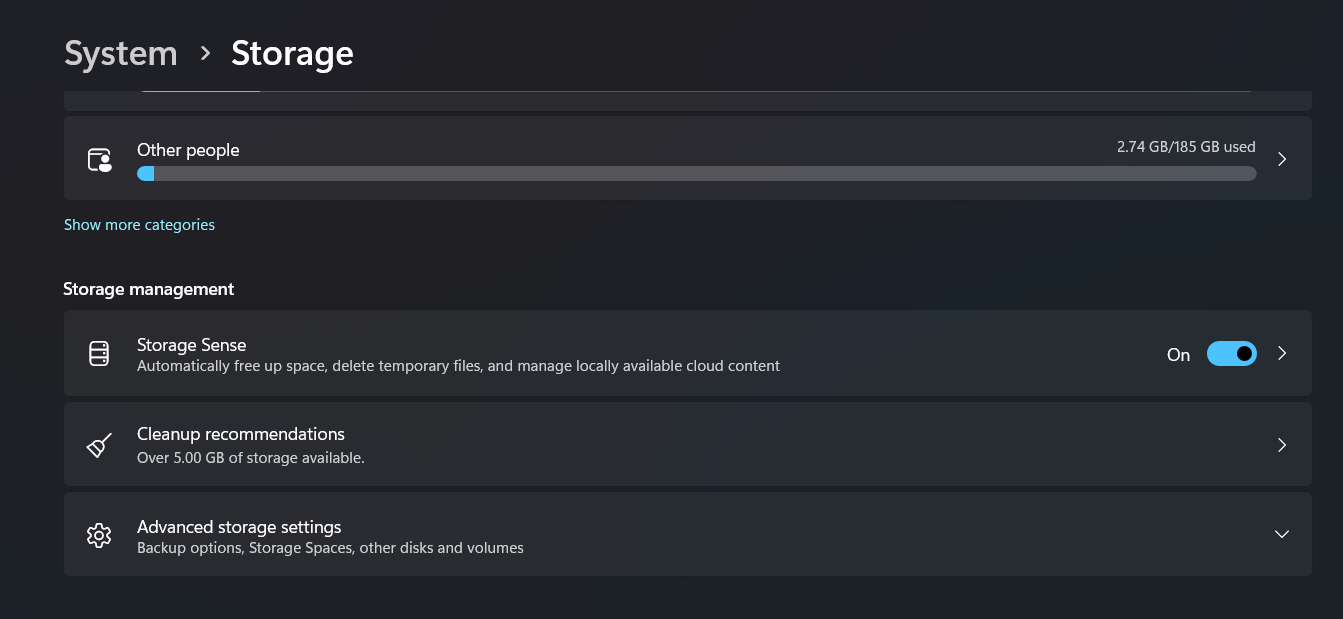
This is the master switch.
Without enabling this, your system won’t perform automatic cleanup at all.
📅 Best Settings to Automatically Clean Windows PC (Important Section)
Now comes the most important part—configuring it correctly.
Most users turn this ON and leave default settings. That’s a mistake.
🔹 1. Set the Cleanup Schedule Properly
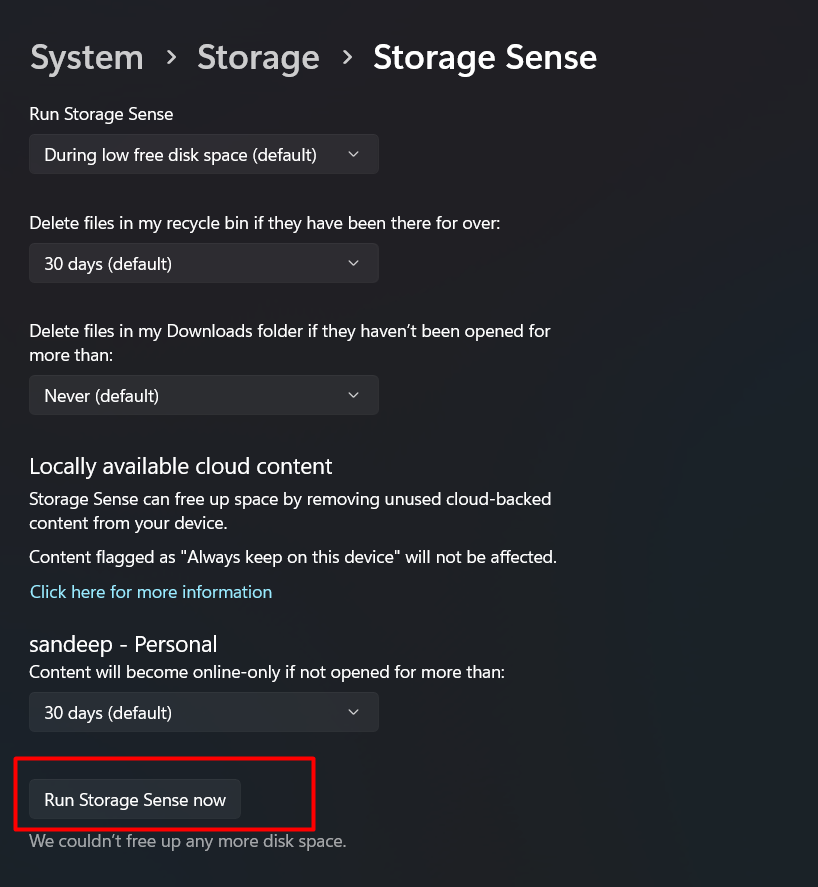
By default, Windows runs cleanup only when storage is low.
This means it reacts after the problem happens—not before.
To truly automatically clean Windows PC, change this setting:
- Monthly → Ideal for most users
- Weekly → Best if you use your PC heavily
Avoid daily—it’s unnecessary.
🗑️ 2. Manage Recycle Bin Automatically
Whenever you delete a file, it doesn’t disappear—it goes to the Recycle Bin.
Over time, this becomes hidden storage waste.
Set:
👉 Delete files after 30 days
This gives you enough time to recover files while keeping your system clean.
⚠️ 3. Downloads Folder (Most Important Decision)
This setting can either help you—or cause serious data loss.
Windows allows you to delete files from Downloads automatically if they haven’t been opened.
But here’s the problem:
- These files are deleted permanently
- They don’t go to Recycle Bin
- You cannot recover them easily
And your Downloads folder often contains:
- Important PDFs
- Software installers
- Drivers
- Personal files
So the safest option is:
👉 Set it to Never
If you really want automation, go for 60 days minimum.
⚡ Run Cleanup Instantly (When You Need It)
Sometimes you don’t want to wait.
If your storage is already full or your system feels slow, you can manually trigger cleanup.
Scroll down and click:
👉 Run Storage Sense now
This will immediately automatically clean Windows PC based on your settings.
🔄 What Changes After You Automatically Clean Windows PC
Once everything is set up properly, your system becomes almost self-maintaining.
You’ll notice:
- More free space
- Faster performance
- Less lag
- No need for manual cleanup
And the best part? You don’t have to think about it again.
Windows handles everything silently in the background.
🧹 What Storage Sense Does NOT Clean (Advanced Insight)
While Storage Sense is powerful, it’s not perfect.
It doesn’t clean:
- Deep system temporary files
- Prefetch data
- Old cache from removed apps
- Hidden junk in system folders
These files can still take up space over time.
For advanced users, occasional deep cleaning is helpful—but for most people, Storage Sense alone is a huge upgrade.
For official documentation, you can visit Microsoft support to understand more about Windows storage features.
Most people wait until their PC becomes frustratingly slow before taking action.
But the truth is, you don’t need expensive software or technical knowledge to maintain your system.
A simple feature like Storage Sense can completely change how your computer performs—if you use it correctly.
Take a few minutes today, set it up properly, and your system will take care of itself going forward.
Sometimes, the smartest solutions are the simplest ones.
Read: Sanchar Saathi integration with CEIR TAF-COP Chakshu
How can I automatically clean Windows PC?
Enable Storage Sense and configure cleanup schedule in settings.
Is it safe to use Storage Sense?
Yes, but keep Downloads folder setting on “Never” for safety.
How often should cleanup run?
Monthly for normal users, weekly for heavy users.
Do I need third-party software?
No, Windows already provides built-in cleanup tools.